The web app
The Mapshaper web app at mapshaper.org is designed for interactive editing and visual exploration. Its built-in console supports the same editing syntax as the CLI for most workflows once data is loaded.
All processing happens in your browser. Your data stays on your machine, even when you use the public website.
Loading data
Drag-drop, paste, or use the Add files button to import data.
A few less-obvious behaviors:
- Drop a
.zipcontaining a Shapefile bundle — Mapshaper unzips it on the fly and pulls out the sidecars. (Same goes for.gzfor single-file formats and.kmzfor KML.) - Paste a URL anywhere on the page to import the file at that address.
- Query-string preload —
https://mapshaper.org/?files=URL1,URL2imports a comma-separated list of URLs. All files need to be served from a host that allows cross-origin requests. Append&qto skip the import dialog and open the files immediately. - With advanced options is a freeform text field. Anything you'd pass after
-ion the CLI works here, includingencoding=,string-fields=,csv-fields=,csv-filter=,combine-files,name=and so on. - Multiple files do not auto-combine. Selecting several files at once imports them as independent layers. To get a shared topology (so common boundaries simplify identically), tick with advanced options and add
combine-files.
Tips for importing Shapefiles
- Drag-drop or select component files of a Shapefile together.
.shp,.dbfand.prjare the most essential, others can generally be skipped. - If you see a warning about an unknown text encoding, re-import using the with advanced options checkbox and set
encoding=(for example,encoding=big5for Big-5).
The console
The Console (space bar to toggle) is the most powerful part of the UI. Most CLI commands are available here, except file-loading commands like -i, -include and -require, which are disabled in the browser console.
Keyboard
- Space — open or close the console (only when you're not typing in another text field).
- Up / Down — cycle through previous commands. The history persists across page reloads.
- Backslash
\at end of line — continue a long command on the next line. The Enter key adds the wrap; another Enter runs the full command.
Syntax
- The leading
-is optional for a single console command:clip placesworks the same as-clip places. - When entering a sequence of commands, include the leading
-before each command after the first. The examples in these docs include leading-prefixes because that style works in both the web console and the CLI. - Commands run on the currently-selected layer by default. Switch layers in the layer panel before issuing a command, or pass
target=to be explicit (target=*runs against every layer).
Magic words at the prompt
These are recognized directly by the console, but not by the mapshaper CLI program:
history— print the current session as a single command-line string. Handy for reproducing an interactive workflow as a script.clear— clear the console buffer.
Discovering commands
helplists every available command.help <command>shows the full options for one command, e.g.help dissolve.- The command reference is the same content with a search box.
The map
Right-click menu
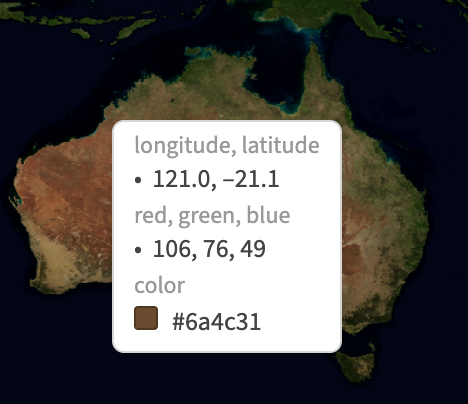
The right-click menu adapts to what's under the cursor. Clicking a value copies it to the clipboard. Click anywhere else to dismiss the menu.
- Longitude, latitude — the WGS84 coordinates of the click point.
- X, y — the same point in the layer's own coordinates, when the data is projected.
- Band values — on a raster layer, the sample values of the pixel under the cursor, labelled
red, green, blue(plusalpha) for a color image. A pixel with no data is labelled as such. Color images also get a color entry, showing a tile of the pixel's color next to its hex value, so it can be copied into a style command. - Copy as GeoJSON — copies the selected feature(s) as GeoJSON. Useful for snipping out one polygon for use elsewhere.
- Delete vertex / delete point / delete feature — available in the corresponding edit modes.
Layer navigation
- Left / Right arrows (when not typing) — cycle through the loaded layers.
Display options
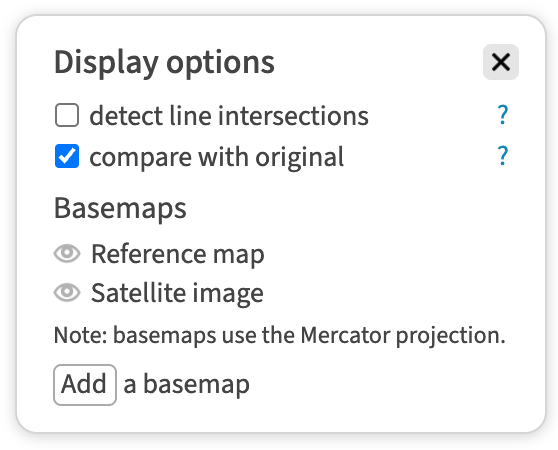
The Display button in the header opens the display options panel. Both checkboxes are remembered between sessions.
- Detect line intersections — highlights self-intersections in red as you simplify or edit, with a running count at the top of the map. This can reveal topology problems in your source data and line intersections caused by simplification. In Simplify mode a repair link appears next to the count, which tries to fix intersections caused by simplifying.
- Compare with original — draws the shapes as they were before your last edit, as a magenta outline on top of the current ones. It applies to the
-buffer,-smoothand-simplifycommands and to the Simplify slider, so you can see exactly what an edit changed without toggling layers on and off. The overlay clears when you make an unrelated edit or turn the checkbox off.
Basemaps
Turning on a basemap draws map tiles behind your data. Click the eye icon next to Reference map or Satellite image to switch one on; the same two are also available as thumbnail buttons in the top-right corner of the map.
Basemaps are in the Mercator projection, so switching one on displays your data in Mercator too. If your data can't be shown that way — it has no geographic coordinates, or its projection is unknown — the panel says so instead of listing the basemaps.
Add adds your own basemap, either from a Mapbox style URL (mapbox://..., with an optional access key) or from a raster tile URL template, with a checkbox for TMS tiles that count their y-index from the bottom. Basemaps you add are kept in the browser and can be removed from the list later.
Basemap tiles are fetched over the network. Everything else in Mapshaper stays on your machine — see Privacy below.
History, undo and snapshots
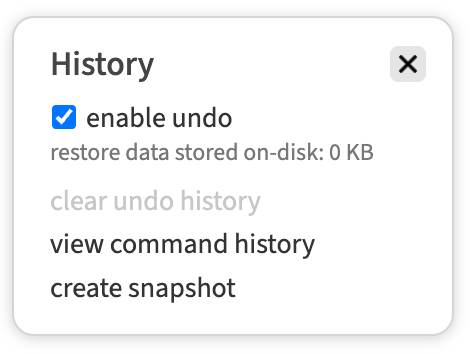
The History button in the header covers three things: undo, the command history, and snapshots.
Undo and redo
Undo is on by default. Clearing enable undo turns it off, which is worth doing if you're working with data large enough that storing the data needed to reverse each step is a burden. The setting is remembered between sessions, and a change applies from that point on rather than retroactively.
- Ctrl+Z (⌘Z on a Mac) undoes and Shift+Ctrl+Z (⇧⌘Z) redoes. The same buttons appear in a small toolbar at the bottom of the map whenever there's anything to undo. Keyboard shortcuts are ignored while you're typing in a text field.
- The first import of a session isn't undoable, and neither is restoring a snapshot. Both are treated as starting points rather than edits.
- Mapshaper keeps the last ten steps, dropping older ones as you work — though while you're inside an editing mode, every change you've made since entering it can be undone, however many there are. Editing very large datasets can push older steps out sooner, and a step too big to store isn't undoable at all: the command still runs, and a warning appears in the messages panel.
- The data needed to reverse a step is stored in the browser. Restore data stored on-disk shows how much space that is currently taking, and clear undo history discards it.
Command history
View command history opens the console and prints the sequence of commands that produced the current state, as one command line you can paste into a terminal or save as a command file. It's the same as typing history in the console. Undoing a step removes it from this list, so the history always describes what's on screen now.
Snapshots
Snapshots save the state of a session so you can return to it. They also record the command history behind them, so re-opening a snapshot brings back its history too.
Create snapshot saves to in-browser storage. Each snapshot appears in a list under the button, with three links:
- restore — go back to that state. This replaces the loaded layers and clears the undo history.
- export — download the snapshot as an
.msxfile. - remove — delete it from the browser.
In-browser snapshots are meant to be temporary; Mapshaper tries to clean them up when the tab closes or the page reloads. For anything you want to keep, use export, or choose Snapshot file as the format in the Export panel.
See the Mapshaper snapshot format page for more on what a .msx file contains and how to use it from the CLI.
Running the web UI locally
mapshaper-gui (installed alongside mapshaper when you npm install -g mapshaper) starts a local Node web server and opens the web UI at http://localhost:5555. Use --port to pick a different port.
You can pre-load files by listing them on the command line, which skips the import dialog:
mapshaper-gui states.shp rivers.shp
Browser support
When importing very large files (hundreds of megabytes), the web app may run out of memory and crash. Firefox used to be better than Chrome at handling large files, but Chrome seems to have improved recently. If the web app crashes, try the mapshaper-xl command-line tool, which can allocate a large amount of memory.
Privacy
The Mapshaper web app runs entirely in your browser. No file content is uploaded to any server. The only network traffic is for static assets (the app itself), basemap tiles when you've enabled a basemap, optional AI assistant requests when an installation has enabled them, and analytics for mapshaper.org page loads. See the privacy policy for details.