Simplification
Simplification reduces the number of vertices in polylines and polygon boundaries while preserving as much of their shape as possible. It is Mapshaper's original feature, and the workhorse for reducing large, detailed datasets to a size practical for web maps.
Choosing a method
Mapshaper offers three simplification methods, selectable as method options in the web UI's Simplification menu or flags to -simplify on the command line.
Douglas-Peucker(also known as Ramer–Douglas–Peucker). Guarantees that simplified lines stay within a fixed distance of the original. Good for stripping excess vertices to reduce file size, but tends to introduce visible spikes at high simplification.Visvalingam / effective area. Iteratively removes the point that forms the triangle of smallest area with its two neighbors.Visvalingam / weighted area. A variation on Visvalingam's algorithm that underweights points at sharp angles, so they are removed earlier than in standard Visvalingam. The result is visibly smoother lines and fewer jagged spikes at high simplification.
Weighted Visvalingam is Mapshaper's default method because it produces generalizations that look good enough for most web maps, even if they fall short of true cartographic quality. But be aware that none of these methods can approach the quality that a cartographer achieves when generalizing linework by hand. For higher-quality generalization than -simplify can provide, try Mapshaper's new -smooth command.
If you are primarily interested in removing as many vertices as possible without visible changes to the shape of the lines, you may find that Douglas-Peucker combined with an appropriate interval= or resolution= parameter gives the best results.
Figures
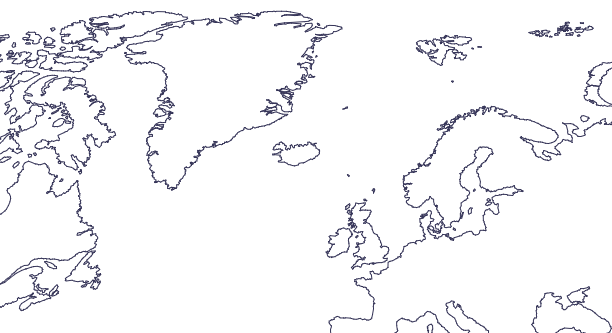
Natural Earth 10m coastlines, simplified with modified Visvalingam at 5% point retention.
Same file using Douglas-Peucker, also 5% simplification.
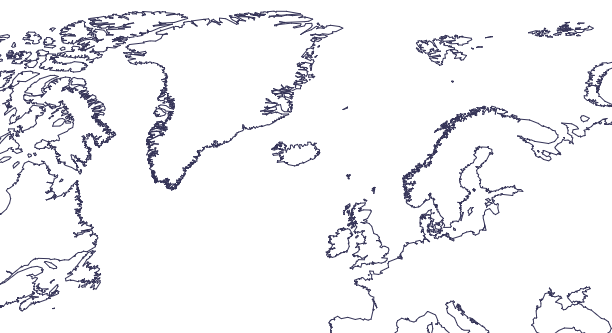
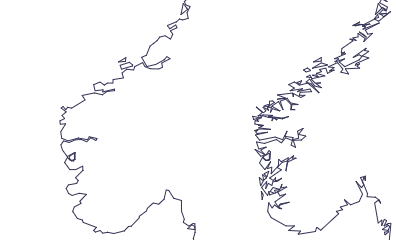
Zoomed-in view of Norwegian coastline at 5% simplification; left: weighted Visvalingam, right: Douglas-Peucker. These figures illustrate the different ways each method removes detail. In a finished map, you would apply far less simplification than this — simplification artifacts generally should not be discernible to the naked eye.
Simplification amount
On the command line, there are three ways to specify the amount of simplification to apply: percentage, interval, and resolution.
Percentage is the default (you don't need to type percentage=). It gives the percentage of removable vertices to retain, so lower numbers = more simplification.
mapshaper provinces.geojson -simplify 20% \
  -o provinces_simplified.geojson
The interval option takes a distance threshold. With Douglas-Peucker simplification, this is the maximum deviation of the simplified line from the original. With Visvalingam-based methods, interval= describes the approximate size of the smallest details in the simplified output.
mapshaper provinces.geojson -simplify interval=500m \
  -o provinces_simplified.geojson
The resolution= option lets you specify the intended display size of your map in SVG units (equivalent to CSS pixels). A larger value retains more detail. Mapshaper estimates the display size using the full extent of your data, so be careful with this option if your final map will show a smaller geographic area, as the paths may be over-simplified.
mapshaper provinces.geojson -simplify resolution=800 \
  -o provinces_simplified.geojson
See the -simplify reference for the full set of options.
Avoiding shape removal
At high simplification, small polygons can disappear entirely. Pass keep-shapes to -simplify (or tick prevent shape removal in the web UI's Simplify panel) to retain at least one ring per multipart feature, regardless of how aggressive the simplification is.
mapshaper islands.geojson -simplify 5% keep-shapes -o islands-simplified.geojson
Spherical vs planar geometry
By default, Mapshaper simplifies lat/long coordinates on the surface of a sphere, using 3D geometry. This applies a consistent amount of simplification across the whole globe, including near the poles. If your data is in a projected coordinate system, simplification uses 2D planar geometry.
Avoiding self-intersections
Heavy simplification can pull adjacent polygon edges across each other, producing self-intersections. The -simplify command detects and tries to remove intersections automatically by rolling back simplification where the intersections occur. In the web UI, you can enable "detect line intersections" on the Display panel to show intersections as red dots. In this mode, you will see a button for repairing intersections caused by simplification.
The -clean command will also remove intersections:
mapshaper provinces.shp -simplify 5% -clean -o provinces.geojson
Simplifying multiple layers consistently
When you import multiple layers using -i combine-files, Mapshaper builds a shared topology. Boundaries shared between the input layers — for example, aligned state and county polygon borders — are simplified identically across all layers, but only if their vertices are perfectly aligned to begin with. Since source layers are rarely aligned this precisely, a more reliable approach is to import the smallest available level of geography — counties, in the example below — and derive higher levels using the -dissolve command.
mapshaper -i states.shp counties.shp combine-files \
  -simplify 10% \
  -o out/
or
mapshaper -i counties.shp \
  -dissolve STATE + name=states \
  -simplify 10% \
  -o target=counties,states out/
The web app does not combine files automatically when you import multiple layers. To get the shared-topology behavior in the web app, tick with advanced options in the import dialog and add combine-files to the options field.